Selection Scope
Generally speaking, selection is used to choose an object for inspection and manipulation. In Unity, the Inspector itself is based around this concept, allowing for both inspection and manipulation of the current globally selected object (such as a GameObject or an Asset. However, selection is not limited to the Inspector window, and is not always global. It is quite common for Editor windows to have their own selection context which is used only within that window itself. Think of these different selection contexts as “scopes”. One of the challenges when designing systems with selection in Unity is ensuring that these different scopes are intuitive and do not conflict with each other.
As an example of differing selection scopes, let’s take a look at the 2-column view of the Project View.
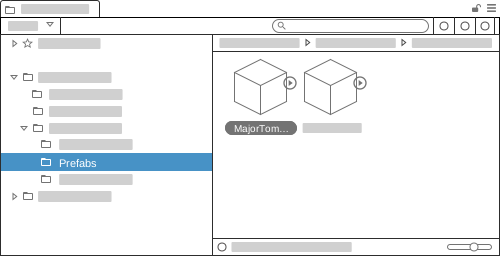
In the left column, the Prefabs folder is selected. This selection is only local to the Project View itself, and is used to inspect the folder’s contents. The contents ofthe folder are shown in the right column, where the user can select a specific object. This changes the global selection, which allows for inspecting and manipulating the object within the Inspector. It is an intentional design decision that the left column does not change global selection. This enables users to browse for a specific Asset that they might then wish to drag to an ObjectField in the Inspector.
This example also shows how these scopes can cause confusion. The Inspector does not reflect the selection of the left column, which does cause confusion, because the design pattern that represents selection in the left column tree view is the same as other tree views that do change global selection. We don’t have a simple solution to this problem. However, it is good to be aware of this conflict when designing systems in Unity, and minimize having multiple selection scopes as much as possible.
Working with Global Selection
Any system that needs to inspect an object in the Inspector needs to work with Unity’s global selection (See Selection Scripting Reference API). Because the global selection is a concept shared between all Editor windows, any system that works with it has to follow some base rules to behave in a consistent manner.
- If another system changes global selection, you must obey the deselection of your object and show it as deselected.
- The user can hold Control (Windows) or Command (macOS) while selecting objects to to add/remove those objects in the selection. You should add/remove your object to the selection when this happens, rather than replacing the current selection, even if there are objects currently selected that are not owned by your system.
- Multi-selection in global selection can include any combination of objects from multiple systems (an Asset, a GameObject in the Scene, and a state machine node can all be selected at the same time). Your system should gracefully handle situations like this.
Selection Highlight
A selection highlight shows the user which item is currently selected in some context. Selection highlight can be shown in one of two ways depending on whether the selection scope has keyboard focus.
If the selection scope has keyboard focus, the background for the text changes to blue to reflect keyboard focus, and the text changes to white to contrast with the background. This is true for both the light and dark skins.

If the selection scope has no keyboard focus, the background for text changes to a grey that contrasts with the selectable elements around it. The text should still be white to contrast with the background.
